





Introduction
Previously, I compared TailwindCSS to Bootstrap and included some examples of how the different frameworks apply styles. But that was more of an introduction to what TailwindCSS can rival. In this blog post, I want to go over some key components of TailwindCSS as well as customising your application’s theme.
I just want to highlight that TailwindCSS is a class-heavy framework, which means that whilst developing your code can become hard to read. This is why we were given the ability to stack classes and style attributes to make up a single class that applies all styles/classes under one class name.
Keep in mind, I have added TailwindCSS to a Laravel app that I generated. So my file layout might look slightly different from what you may be seeing. But the concept should be the same.
Class Stacking
This is actually really simple; all you would need to do is add a new class in the base import inside your application’s CSS/SCSS file that you set it up on. Like I’ve done below.
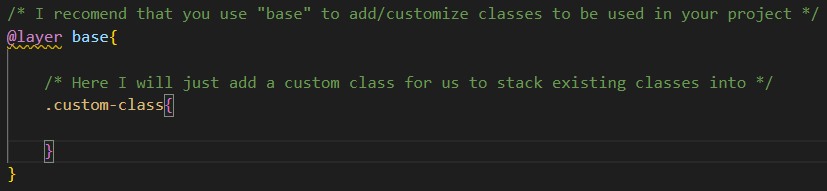
By adding the class within the base import, you have initialised the class within your application, allowing it to make use of the Preflight capabilities that the base import provides. Meaning you can now apply existing classes to one new class by using the @apply directive that TailwindCSS provides, like this.
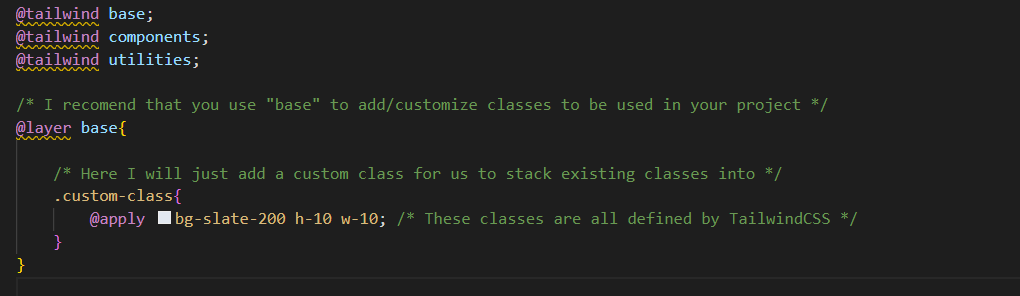
Or you could just add the style attributes that you need to the class directly, or you could make an external class and have that class inherit its attributes, like this.
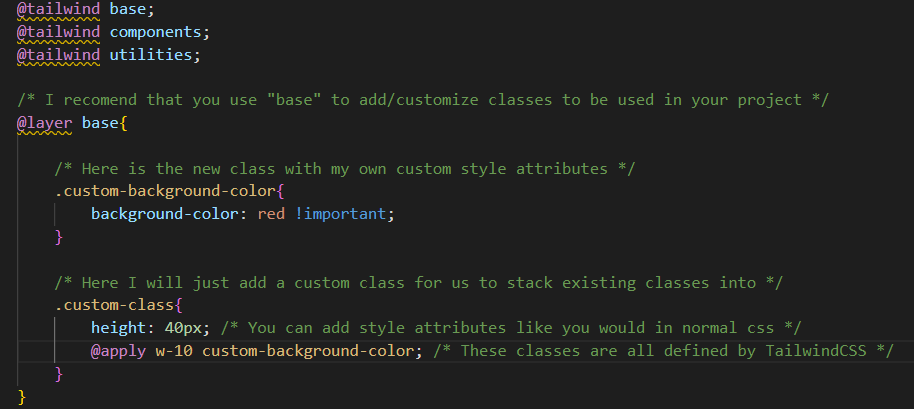
So just by going through this, you should be seeing all the benefits from a development standpoint. TailwindCSS makes it easy for you to overwrite existing classes or even create classes with a combination of style attributes.
Customise Theme
There is far more customisation that can be done. For example, you can customise and set up your application’s colour theme with ease. Inside your tailwind.config.js file, you can add custom colours while making use of TailwindCSS’s way of applying those colours to elements. Here is a basic setup.
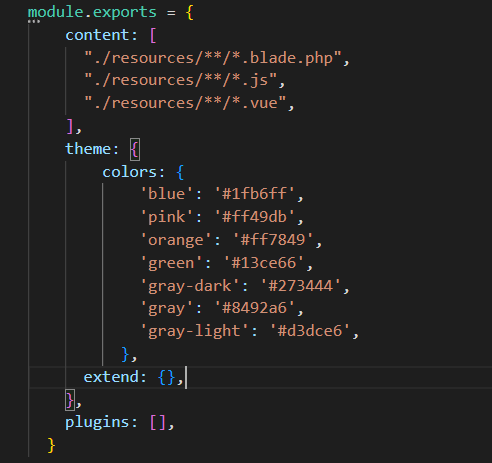
Everything within the “colors” object is where you set your colours. Looking at this, you must be thinking, Why would I list them in this file? Well, to explain why it’s a good practice, I would have to show you.
Let’s look at a class that is already built into TailwindCSS.

This is the output that you should get if the classes are applied correctly.

It’s super simple, but I’m showing you how the colours are being used. So now, when you add your custom colour theme, use it like this.

Notice the colours that are being output below.

Conclusion
Thanks for giving my post a read. I hope this helped you understand TailwindCSS a bit better. If there are any questions about what I have explained so far, please feel free to comment on this post. I’ll respond as soon as possible. This will be all for now until next time, keep developing!


